Loading repository data…
twilio / repository
twilio-video-room-monitor.js
A browser-based tool that displays information and metrics about Twilio Video JavaScript applications
#devtool#twilio#video#webrtc
Live repository statistics
★ 28Stars
⑂ 14Forks
◯ 6Open issues
◉ 28Watchers
README preview
Twilio Video Room Monitor

What is it
A browser-based tool that provides Twilio Video JavaScript developers visibility into the inner workings of their video application. It displays near real-time information and metrics from the Room object and can be added to any Twilio Video JavaScript application with a few lines of code.
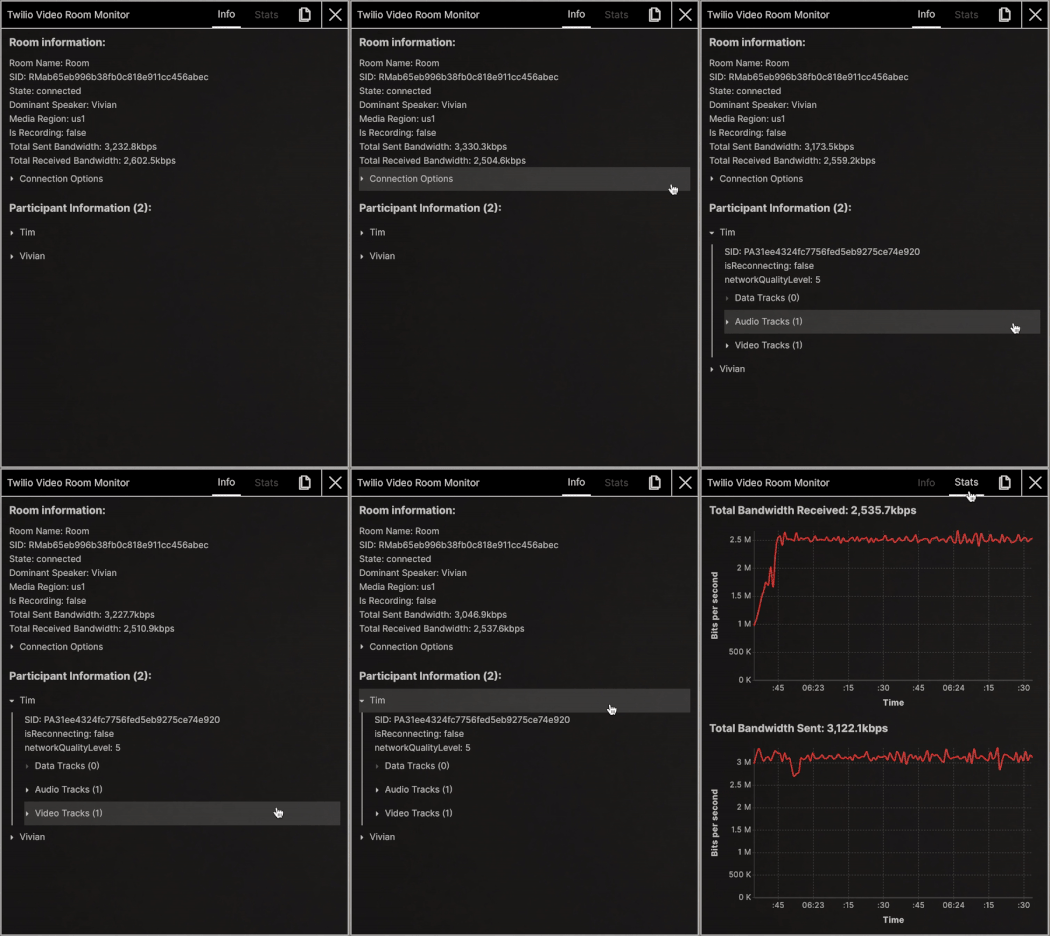
The Twilio Video Room Monitor can be used as a tool during all phases of development or can be forked, customized, and provided to end-users as an in-call troubleshooting view.
To learn more, visit the Video Room Monitor Documentation.
Changelog
View Changelog.md for details about our releases.
Browser Support
| Chrome | Edge (Chromium) | Firefox | Safari | |
|---|---|---|---|---|
| Android | ✓ | - | ✓ | - |
| iOS | ✓ | - | - | ✓ |
| Linux | ✓ | - | ✓ | - |
| macOS | ✓ | ✓ | ✓ | ✓ |
| Windows | ✓ | ✓ | ✓ | - |
Getting Started
NPM
You can install directly from npm.
npm install @twilio/video-room-monitor --save
Using this method, you can import @twilio/video-room-monitor and open the monitor like so:
import Video from 'twilio-video';
import { VideoRoomMonitor } from '@twilio/video-room-monitor';

Video.connect('token').then((room) => {
  VideoRoomMonitor.registerVideoRoom(room);
  VideoRoomMonitor.openMonitor();
});
Script Tag
You can also copy twilio-video-room-monitor.min.js from the dist/browser folder and include it directly in your web app using a <script> tag.
<script src="https://my-server-path/twilio-video-room-monitor.min.js"></script>
Using this method, you can register a room and open the room monitor like so:
window.Twilio.VideoRoomMonitor.registerVideoRoom(room);
window.Twilio.VideoRoomMonitor.openMonitor();
Console Script Quickstart (not for production use)
As a way to quickly use the Video Room Monitor in any Twilio Video JavaScript application, you can also run the following snippet in the browser console to open the Monitor:
(() => {
  const script = document.createElement('script');
  script.src = 'https://cdn.jsdelivr.net/npm/@twilio/video-room-monitor/dist/browser/twilio-video-room-monitor.min.js';
  script.onload = () => {
    // Register your Twilio Video Room here
    window.Twilio.VideoRoomMonitor.registerVideoRoom(twilioRoom);
    window.Twilio.VideoRoomMonitor.openMonitor();
  };
  document.body.appendChild(script);
})();
Note that the Room object must be exposed as a global variable (twilioRoom as seen in the above example) so that it can be registered with the Monitor.
Using this method, you can then close or toggle the monitor like so:
Twilio.VideoRoomMonitor.closeMonitor();
Twilio.VideoRoomMonitor.toggleMonitor();
NOTE: This method is not recommended for production use due to the CDN, as we don't have control of the availability of cdn.jsdelivr.net.
Usage
registerVideoRoom()
This is a required step to be able to use the Video Room Monitor. This registers a Twilio Video Room. To register a room, you can run the following line of code:
VideoRoomMonitor.registerVideoRoom(newRoom);
openMonitor()
This opens the monitor and emits the opened event. To open the monitor, you can run this line of code in the console:
VideoRoomMonitor.openMonitor();
To listen for the opened event, you can run the following line of code:
VideoRoomMonitor.on('opened', () => console.log('the monitor has been opened'));
closeMonitor()
This closes the monitor and emits the closed event. To close the monitor, you can run this line of code in the console:
VideoRoomMonitor.closeMonitor();
To listen for the closed event, you can run the following line of code:
VideoRoomMonitor.on('closed', () => console.log('the monitor has been closed'));
toggleMonitor()
This toggles the monitor to be either open or closed. If the monitor is currently closed, then it will open the monitor (and emit the opened event) and vice versa. To toggle the monitor, you can run this line of code in the console:
VideoRoomMonitor.toggleMonitor();
isOpen
This is a boolean value that indicates whether or not the monitor is currently open.
VideoRoomMonitor.isOpen;
Local Development
Prerequisites
You must have the following installed:
- Node.js v14+
- NPM v7+ (comes installed with newer Node versions)
Install dependencies
Fork and clone the repository, then install all dependencies with
npm install
Scripts
npm start
Compile the app (in watch mode) into a directory (dist/node) that will allow users to install the Monitor locally with NPM.
npm install -S <path_to_monitor>
NPM will install the Monitor as a symlink, so as files are edited, saved, and re-compiled, they will automatically be reflected in the application that has installed the Monitor locally.
Any TypeScript errors that are found will be displayed in the console.
npm run build
This will build both Node.js and browser versions of the Monitor in the dist/ directory.
npm run ts
Run this command to check the types in the app.
npm test
Runs all unit tests.
npm run lint
Runs the linter.
npm run parcel:watch
This will host the app on a local server. This server can then be used to run the tool in the browser by using a script tag:
<script src="http://localhost:1234/twilio-video-room-monitor.js></script>
Or by running this code snippet in the console of your browser:
(() => {
  const script = document.createElement('script');
  script.src = 'http://localhost:1234/twilio-video-room-monitor.js';
  script.onload = () => {
    // Register your Twilio Video Room here
    window.Twilio.VideoRoomMonitor.registerVideoRoom(twilioRoom);
    window.Twilio.VideoRoomMonitor.openMonitor();
  };
  document.body.appendChild(script);
})();
After this has finished running, you can run commands to open and close the monitor within the console.
License
See LICENSE.