Loading repository data…
susam / repository
emacs4cl
A tiny DIY kit to set up vanilla Emacs for Common Lisp programming
#common-lisp#dark-theme#emacs#emacs-initialization#emacs-lisp#minimalist
Live repository statistics
★ 394Stars
⑂ 29Forks
◯ 4Open issues
◉ 394Watchers
README preview
Emacs For Common Lisp (Emacs4CL)
This repository provides a tiny .emacs file to set up Emacs quickly
for Common Lisp programming. This document provides a detailed
description of how to set it up and get started with Common Lisp
programming.



This repository provides a good middle ground between configuring Emacs
manually by installing SLIME, Paredit, etc. yourself with M-x package-install commands and installing Portacle. It promotes a
do-it-yourself approach to automate customizing Emacs for Common Lisp
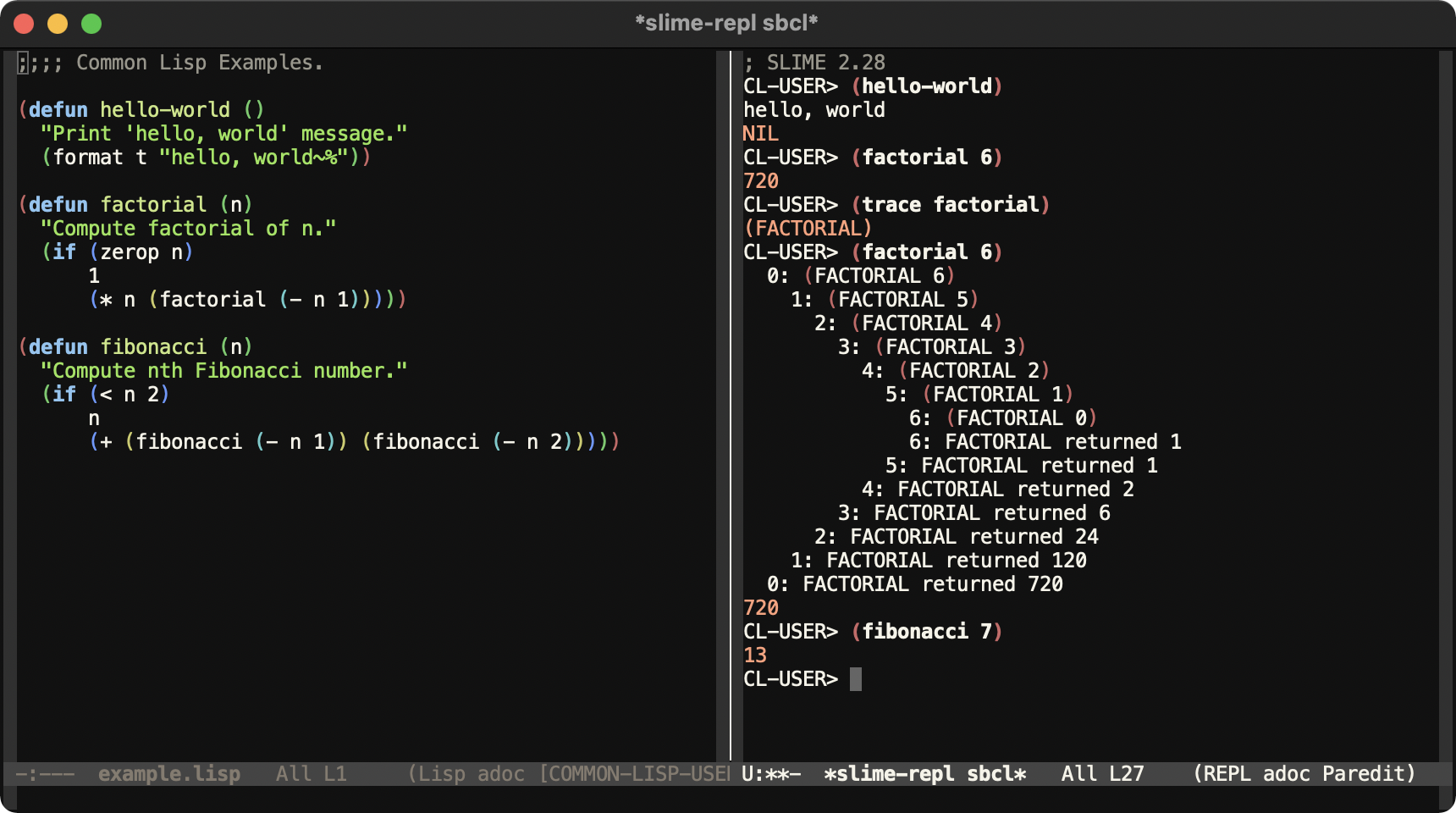
programming. Here is how the development environment is going to look
like:
If you are already comfortable with Emacs and only want to understand
the content of the .emacs file, you can skip ahead directly to the
Line-by-Line Explanation section that
describes every line of this Emacs initialization file in detail.
Contents
- Who Is This For?
- Get Started
- Step-by-Step Usage
- Line-by-Line Explanation
- More Emacs Customization
- Alternatives
- Opinion References
- Channels
- License
Who Is This For?
Are you an absolute beginner to Emacs? Are you so new to Emacs that
you do not even have ~/.emacs or ~/.emacs.d on your file system?
Have you considered learning Common Lisp but when you picked up a book
like Practical Common Lisp, you learnt that it recommends Emacs
and SLIME for development environment and it seemed like a significant
additional learning curve for you? If you answered "yes" to most of
these questions, then this project is for you.
The .emacs file in this project provides you a quick way to get
started with setting up your development environment. This document
explains how to do so in a step-by-step manner. This document also
explains the content of .emacs file in a line-by-line manner.
Get Started
This section helps you to set up Emacs for Common Lisp development quickly and see what the end result looks like. Perform the following steps to get started:
-
Install SBCL and Emacs.
On macOS, enter the following command if you have Homebrew:
brew install sbcl
brew install --cask emacs
On Debian, Ubuntu, or another Debian-based Linux system, enter the following command:
sudo apt-get install sbcl emacsFor other environments, download SBCL and Emacs from http://www.sbcl.org/platform-table.html and https://www.gnu.org/software/emacs/ respectively.
-
Copy the Emacs initialization file
.emacsprovided here to your home directory. Here is an examplecurlcommand that copies the initialization file to its traditional location:curl -L https://github.com/susam/emacs4cl/raw/main/.emacs >> ~/.emacsHere is another alternative that copies the initialization file to a more convenient location:
mkdir ~/.emacs.d
curl -L https://github.com/susam/emacs4cl/raw/main/.emacs >> ~/.emacs.d/init.el
Yet another popular alternative is to copy the initialization file to an XDG-compatible location as follows:
mkdir -p ~/.config/emacs
curl -L https://github.com/susam/emacs4cl/raw/main/.emacs >> ~/.config/emacs/init.el
Emacs can automatically load the Emacs initialization file from any of the paths used above. See section The Emacs Initialization File of the Emacs manual for more details about this. Most users these days prefer one of the last two locations because it allows all Emacs configuration to conveniently remain in one directory.
-
Start Emacs:
emacsOn macOS, you may receive the following error message in a dialog box: '“Emacs.app” can’t be opened because Apple cannot check it for malicious software.' To resolve this issue, go to Apple menu > System Preferences > Security & Privacy > General and click 'Open Anyway'.
It may take a minute or so for Emacs to start the very first time. When it starts the first time with the new Emacs initialization file obtained in the previous step, it installs the packages specified in it. This is only a one-time activity. The next time you start Emacs, it will start instantly. We will see how takes care of it in the line-by-line guide later.
Now that your environment is setup, read the next section to learn how to use this environment in more detail.
Step-by-Step Usage
Use SBCL
Steel Bank Common Lisp (SBCL) is a high performance Common Lisp compiler. It runs on several Unix and Unix-like systems such as Linux, FreeBSD, macOS, etc. It also runs experimentally on Windows. It is the most popular free and open source implementation of Common Lisp as of December 2020. See the Opinion References section for survey results related to this.
The steps provided below show how to run SBCL independently. This is not a typical way to run SBCL because most of the time we interact with SBCL via SLIME right from within Emacs. However running it independently once helps one appreciate that it is an independent program that compiles and executes Common Lisp code. Here are the steps:
-
Open your favourite editor, type this code, and save it as
hello.lisp:(format t "hello, world~%") -
Then enter this command in the shell to run the program:
sbcl --script hello.lisp -
Now start the SBCL Read-Eval-Print Loop (REPL) with the following command in the shell:
sbcl -
An asterisk prompt appears. Enter a Common Lisp expression at the asterisk prompt like this and type enter:
(+ 1 2)The result should appear as the output.
-
Similarly, enter the following expression at the SBCL prompt and type enter:
(format t "hello, world~%") -
Finally, enter the following expression and type enter to exit the SBCL REPL:
(exit)
Use Emacs
Emacs is a very powerful and extensible editor. It comes with over 10,000 built-in commands. A small section like this can barely scratch the surface of Emacs. Yet, this section makes a modest attempt at getting you started with Emacs and then provides more resources to learn further. Perform the following steps to get started:
-
Start Emacs:
emacs -
Within Emacs, enter the following command to open a file, say,
hello.txt:C-x C-f hello.txt RETA new buffer to edit
hello.txtis created. If a file with that name already exists on your file system, then it loads the content of the file into the buffer.Note that in the Emacs world (and elsewhere too), the notation
C-denotes the ctrl modifier key. ThusC-xdenotes ctrl + x.The notation
RETdenotes the enter or return key.Typing consecutive
C-key sequences can be optimized by pressing and holding down the ctrl key, then typing the other keys, and then releasing the ctrl key. For example, to typeC-x C-f, first press and hold down ctrl, then type x, then type f, and then release ctrl. In other words, think ofC-x C-fasC-(x f). This shortcut works for other modifier keys too. -
Now type some text into the buffer. Type out at least 3-4 words. We will need it for the next two steps.
-
Move backward by one word with the following key sequence:
M-bRemember from the previous section that
M-denotes the meta modifier key. The above command can be typed with alt + b or option + b or esc b.If you face any issue with the alt key or the option key, read Emacs Wiki: Meta Key Problems.
-
Now move forward by one word with the following key sequence:
M-f -
The
C-gkey sequence cancels the current command. This can be used when you mistype a command and want to start over or if you type a command partially, then change your mind and then you want to cancel the partially typed command. Try out these examples:C-x C-f C-gC-x C-g -
Save the buffer to a file on the file system with this command:
C-x C-s -
Quit Emacs