Loading repository data…
oguzhnatly / repository
flutter_carplay
🚗 Apple CarPlay and Android Auto for Flutter Apps. Aims to make it safe to use apps made with Flutter in the car by integrating with CarPlay and Android Auto.
#android#android-auto#android-automotive#android-automotive-os#apple#carplay
Live repository statistics
★ 299Stars
⑂ 110Forks
◯ 9Open issues
◉ 299Watchers
README preview
CarPlay and Android Auto with Flutter 🚗


Flutter Apps now on Apple CarPlay and Android Auto ! flutter_carplay aims to make it safe to use apps made with Flutter in the car by integrating with CarPlay and Android Auto. The package takes the things you want to do while driving and puts them on the car's built-in display.
✨ New in v1.5.0: Android Auto alert, grid, and tab bar templates, modal alert APIs, and richer Android Auto list loading states.
✨ New in v1.1.0: CarPlay apps can now launch automatically without requiring the Flutter app to be opened first, supporting true background launch capabilities.
Apple announced some great features in iOS 14, one of which is users download CarPlay apps from the App Store and use them on iPhone like any other app. When an iPhone with a CarPlay app is connected to a CarPlay vehicle, the app icon appears on the CarPlay home screen. CarPlay apps are not separate apps—you add CarPlay support to an existing app.
Your app uses the CarPlay framework to present UI elements to the user. iOS manages the display of UI elements and handles the interface with the car. Your app does not need to manage the layout of UI elements for different screen resolutions, or support different input hardware such as touchscreens, knobs, or touch pads.
It supports only iOS 14.0+. For general design guidance, see Human Interface Guidelines for CarPlay Apps.
📚 Documentation
For detailed guides and examples, check out the Wiki:
- Getting Started — Installation and basic setup
- iOS Setup — CarPlay entitlements and configuration
- Android Auto Setup — Android Auto configuration
- Templates — All templates with code examples
- Troubleshooting — Common issues and solutions
- FAQ — Frequently asked questions
Summary
- Overview
- Templates
- Supports
- What's New in latest versions
- Road Map
- Contributing
- Requesting the CarPlay Entitlements
- Disclaimer Before The Installation
- Get Started
- Android Auto vs Android Automotive OS
- Solve problems configuring your project
- Usage & Features
- Templates
- LICENSE
Overview

Before you begin CarPlay integration, you must carefully read this section.
The official App Programming Guidelines from Apple is the most valuable resource for understanding the needs, limits, and capabilities of CarPlay Apps. This documentation is a 49-page which clearly spells out the some actions required, and you are strongly advised to read it. If you are interested in a CarPlay System, learn more about the MFi Program.
Templates
Car Play Templates
CarPlay apps are built from a fixed set of user interface templates that iOS renders on the CarPlay screen. Each CarPlay app category can only use a restricted number of templates. Your app entitlement determines your access to templates.
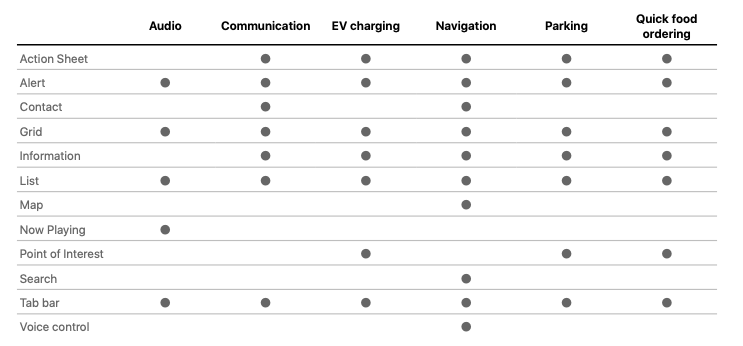
Android Auto Templates
Android Auto apps built with the Android for Cars App Library are constructed using a fixed set of vehicle-optimized templates that the host renders on the car screen. Each Android Auto app category (e.g., Navigation, Point-of-Interest, IoT, etc.) can only use a restricted number of templates, and access to the Android for Cars App Library and its templates is generally restricted to supported app categories.
https://developer.android.com/design/ui/cars/guides/templates/overview
Supports
Car Play Support
flutter_carplay currently supports:
- Action Sheet Template
- Alert Template
- Grid Template
- List Template
- Tab Bar Template
- Information Template (contribution from OSch11)
- Point of Interest Template (contribution from OSch11)
- Search Template
- Now Playing Template (v1.1.0)
By evaluating this information, you can request for the relevant entitlement from Apple.
Android Auto Support
- List Template (limited support)
- Grid Template
- Tab Bar Template (requires Car App API level 6+)
- Alert Template
- Message Template
- Long Message Template
- Pane Template
- Now Playing Template (Automatically handled by Android Auto system)
What's New in latest versions
v1.5.0
- 🚘 More Android Auto Templates: Added alert, grid, and tab bar templates, including tab selection handling
- ⚠️ Android Auto Alerts: Added modal alert presentation and dismissal APIs for Android Auto flows
- 🧾 Better Android Auto Lists: Added loading messages and empty view title support for list templates
v1.4.0
- 🔎 CarPlay Search Template: Added
CPSearchTemplatewith search text, result selection, and search button callbacks - 🤖 More Android Auto Templates: Added
AAMessageTemplate,AALongMessageTemplate, andAAPaneTemplate, including update APIs - 🧾 Better Android Auto Lists: Added stable IDs, section selection, toggles, browsable rows, and trailing images
- 🖼️ Flutter Asset SVG Support: Flutter asset SVGs are rasterized before reaching native CarPlay and Android Auto image fields
- 📚 Android Auto Docs: Clarified that Android Auto template rendering is different from Android Automotive OS apps
v1.3.0
- 🖼️ CPListImageRowItem: Added support for image row list items, including element based layouts on newer iOS versions
- 🔄 Information Template Updates: Added update methods for information items and actions without rebuilding the whole template, thanks to @sINFdorako
- 🧩 Better Tab Bar Configuration:
tabTitle,systemIcon, andshowsTabBadgeare now exposed consistently on templates - 🛠️ API Polish: Added custom ids across models, convenient update helpers, and improved image loading reliability
v1.2.0
- 🤖 Android Auto Support: Initial support for Android Auto with limited features (Thanks to @EArminjon)
v1.1.0
- 🚀 Background Launch Support: CarPlay apps can now start automatically without requiring the Flutter app to be opened first (Thanks to @vanlooverenkoen and @EArminjon)
- 🎵 Now Playing Template: Navigate to the shared instance of the Now Playing Template with
FlutterCarplay.showSharedNowPlaying() - 🌐 Flexible Image Sources: Load images from assets, local files (
file://), or URLs (https://) (Thanks to @vanlooverenkoen) - 🔧 Improved Completion Handlers: Better reliability for list item interactions and template transitions
- 📱 Flutter 3.32.x Compatibility: Updated for the latest Flutter versions
Special thanks to @EArminjon, @vanlooverenkoen, @snipd-mikel, @APIUM, and all contributors who made this release possible!
Road Map
Other templates will be supported in the future releases by flutter_carplay.
Car Play Road Map
- Map Template
- Search Template
- Voice Control & "Hey Siri" for hands-free voice activation
- Contact Template
Android Auto Road Map
- Action Sheet Template
- Information Template via Pane Template
- Point of Interest Template
- Map Template
- Search Template
- Voice Control & "Hey Google" for hands-free voice activation
- Contact Template
Contributing
- Pull Requests are always welcome.
- Pull Request Reviews are even more welcome! I need help in testing.
- If you are interested in contributing more actively, please contact me at info@oguzhanatalay.com Thanks!
- If you want to help in coding, join Discord Server, so we can chat over there.
Requesting the CarPlay Entitlements
All CarPlay apps require a CarPlay app entitlement.
If you want to build, run and publish your app on Apple with CarPlay compatibility or test or share the app with others through the TestfFlight or AdHoc, you must first request Apple to approve your Developer account for CarPlay access. The process can take from a few days to weeks or even months. It depends on the type of Entitlement you are requesting.
To request a CarPlay app entitlement from Apple, go to https://developer.apple.com/contact/carplay and provide information about your app, including the CarPlay App Category. You must also agree to the CarPlay Entitlement Addendum.
With this project, you can start developing and testing through Apple's CarPlay Simulator without waiting for CarPlay Entitlements. Apple will review your request. If your app meets the criteria for a CarPlay app, Apple will assign a CarPlay app entitlement to your Apple Developer Account and will notify you.
Whether you are running the app through a simulator or developing it for distribution, you must ensure that the relevant entitlement key is added to the Entitlements.plist file. You must create an Entitlements.plist file if you do not already have one.
After you receive the CarPlay Entitlement
After you receive the entitlement, you need to configure your Xcode project to use it, which involves several steps. You create and import a provisioning profile, and add an Entitlements.plist file. Your project’s code signing settings also require minor changes.
For more detailed instructions about how to create and import the CarPlay Provisioning Profile and add an Entitlements File to Xcode Project, go to Configure your CarPlay-enabled app with the entitlements it requires.
Choose the CarPlay entitlement that matches the app category Apple approved for your project. The example app keeps com.apple.developer.carplay-parking so the Point of Interest demo remains available. If your app uses a different CarPlay category, replace it with the matching entitlement, for example com.apple.developer.carplay-maps for maps and navigation, com.apple.developer.carplay-quick-ordering for quick ordering, com.apple.developer.carplay-charging for EV charging, com.apple.developer.carplay-fueling for fuel stations, `com.apple.developer.carplay-dr