Loading repository data…
IBM / repository
icp4d-customer-churn-classifier
Infuse AI into your application. Create and deploy a customer churn prediction model with IBM Cloud Private for Data, Db2 Warehouse, Spark MLlib, and Jupyter notebooks.
#brunel#data-science#db2-warehouse#ibm-cloud-private#jupyter-notebook#machine-learning
Live repository statistics
★ 18Stars
⑂ 23Forks
◯ 4Open issues
◉ 18Watchers
README preview
Infuse AI into your application
In this code pattern, we will create and deploy a customer churn prediction model using IBM Cloud Pak for Data. The basis for our model is a data set that contains customer demographics and trading activity data. We will use a Jupyter notebook to visualize the data, build hypotheses for prediction, and then build, test, and save a prediction model. Finally, we will enable a web service and use the model from an app.
This code pattern has been updated to include images from the latest version of Cloud Pak for Data, v3.5.0.
The use case describes a stock trader company that can use churn prediction to target offers for at-risk customers. Once deployed, the model can be used for inference from an application using the REST API. A simple app is provided to demonstrate using the model from a Python app.
When the reader has completed this code pattern, they will understand how to:
- Load customer data into Db2 Warehouse
- Run a Jupyter notebook
- Visualize data using Brunel
- Create a model using Spark ML library
- Deploy the model as a web service
- Access the model from an external app for inference (churn risk prediction)
Flow
- Data is loaded locally, or optionally into Db2 Warehouse
- Jupyter notebook accesses data
- Jupyter notebook uses Brunel for information visualization
- Jupyter notebook uses Spark ML library to create a model
- Jupyter notebook saves the model to the repository for deployment
- Applications access the model via the REST API
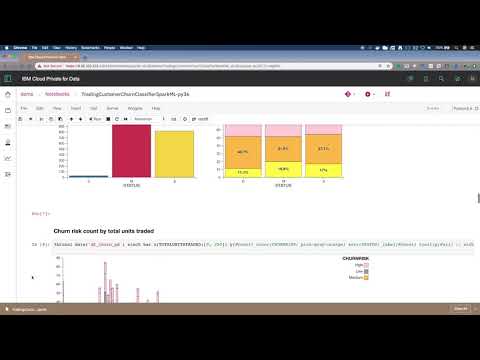
Watch the Video
Prerequisites
The instructions in this code pattern assume you are using IBM Cloud Pak for Data version 3.5.0.
Steps
Sign in to your IBM Cloud Pak for Data web client. All of the steps are performed using the web client unless stated otherwise.
- Clone the repo
- Set up an analytics project
- Create a Space for Machine Learning Deployments
- Create the notebook
- Insert pandas DataFrame
- Initialize Watson Machine Learning client
- Provide the deployment space information
- Run the notebook
- Analyze the results
- Test the model
- Use the model in an app
- (OPTIONAL) Use Db2 Warehouse to store customer data
1. Clone the repo
Clone the icp4d-customer-churn-classifier repo locally. In a terminal, run the following command:
git clone https://github.com/IBM/icp4d-customer-churn-classifier
2. Set up an analytics project
To get started, open the Projects page and set up an analytics project to hold the assets that you want to work with, and then get data for your project.
Create a project
-
Launch a browser and navigate to your Cloud Pak for Data deployment.
-
Go to the (☰) menu, expand
Projectsand clickAll projects:
- Click on New project +. In the dialog that pops up, select the project type as
Analytics projectand clickNext:
- Click on the top tile for
Create an empty project:
- Give the project a unique name, an optional description and click
Create:
Add the data asset
NOTE: You can optionally load the data into Db2 Warehouse. For instructions, go to use Db2 Warehouse to store customer data.
- In your project, on the
Assetstab, click the01/00icon and theLoadtab, then either drag the data/mergedcustomers.csv file from the cloned repository to the window or navigate to it usingbrowse for files to upload:
3. Create a Space for Machine Learning Deployments
Before we create a machine learning model, we will have to set up a deployment space where we can save and deploy the model.
Follow the steps in this section to create a new deployment space.
- Navigate to the left-hand (☰) hamburger menu and choose
Deployments:
- Click on
New deployment space +:
- Click on the top tile for 'Create an empty space':
- Give your deployment space a unique name, an optional description, then click
Create.
- When you get a notification that the space is ready, click on
View new space.
4. Create the notebook
- Back in your project, on the
Assetstab, either click theAdd to project +button, and chooseNotebook, or, if the Notebooks section exists, to the right of Notebooks clickNew notebook +:
- On the next screen, select the From file tab, give your notebook a name and an optional description, choose the
Python 3.7environment as the Runtime and then either drag the notebooks/TradingCustomerChurnClassifierSparkML.ipynb file from the cloned repository to the window or navigate to it usingDrag and drop files here or upload.. ClickCreate:
- When the Jupyter notebook is loaded and the kernel is ready then we can start executing cells.
Important: Make sure that you stop the kernel of your notebook(s) when you are done, in order to conserve memory resources!
5. Insert pandas DataFrame
Now that you are in the notebook, add generated code to insert the data as a DataFrame and fix-up the notebook reference to the DataFrame.
-
Place your cursor at the last line of the following cell:
# Use the find data 01/00 icon and under your remote data set
# use "Insert to code" and "Insert pandas DataFrame
# here.

# Add asset from file system
- Click the find data
01/00icon on the menu bar (last icon). On the Files tab, find the data set that you added to the project, clickInsert to codeandpandas DataFrame.
-
The inserted code will result in a DataFrame assigned to a variable named
df1ordf_data_1(perhaps with a different sequence number). Find the code cell like the following code block and edit the#to make it match the variable name.# After inserting the pandas DataFrame code above, change the following # df_data_# to match the variable used in the above code. df_churn_pd is used # later in the notebook. df_churn_pd = df_data_#
6. Initialize Watson Machine Learning client
The Watson Machine Learning client is required to save and deploy our customer churn predictive model, and should be available on your IBM Cloud Pak for Data platform. Find the cell containing the code given below and insert the url, username and password for your IBM Cloud Pak for Data instance:
from ibm_watson_machine_learning import APIClient

# get URL, username and password from your IBM Cloud Pak for Data administrator
wml_credentials = {
"url": "https://X.X.X.X",
"username": "*****",
"password": "*****",
"instance_id": "wml_local",
"version" : "3.5"
}

client = APIClient(wml_credentials)
print(client.version)
7. Provide the deployment space information
IBM Cloud Pak for Data uses the concept of deployment spaces, which is where models can be deployed. You can list all the spaces using the .list() function.
Provide the name of the deployment space that you created in Step 3 above in the cell containing the following text.
#Insert the name of your deployment space here:
DEPLOYMENT_SPACE_NAME = 'INSERT-YOUR-DEPLOYMENT-SPACE-NAME-HERE'
The next cell, then, looks up the deployment space id based on the name that you have provided and prints it out. If you do not receive a space ID as an output to the next cell, verify that you have created a deployment space and have provided the correct deployment space name. Do not proceed until this next cell runs successfully and returns the space_id.
Once you know the deployment space id, update the next cell with this id to set this deployment space as the default deployment space. Further down the notebook, when you deploy the model, it will be deployed to this default deployment space.
# Now set the default space to the GUID for your deployment space. If this is successful, you will see a 'SUCCESS' message.
client.set.default_space('INSERT_SPACE_ID_HERE')
8. Run the notebook
- Run the entire notebook using the menu
Cell ▷ Run Allor run the cells individually with the play button as shown here.
9. Analyze the results
When the notebook was created
- A pod was instantiated – which means loading a complete compute Jupyter notebook environment (7+ GB) with all the artifacts from the ICP4D registry.
- This pod is scheduled on any VM in your cluster – wherever CPU and memory resources are available.
- IP addresses and connections are all configured automatically.
- The same working environment can be used by multiple users. If a single pod's resources are not sufficient, another environment is created automatically.
- When the number of users grow, you can add more machines to the ICP4D cluster and scheduling of resources is handled automatically.
- ICP4D's scale-out model is pretty effective.
- You no longer have to wait days or even weeks to get the compute resources.
- More users can be accommodated with same compute capacity. As one task completes, its resources are freed up to work on next one.
When you ran the notebook
-
During the execution of a cell in a Jupyter notebook, an asterisk
[*]displays in the square bracket which changes to a sequence number when execution of that cell completes. -
The mix of documentation, code, and output can make a Jupyter output self-explanatory. This also makes it a great environment to "show your work" if you have a hypothesis, do some analysis, and come up with a conclusion.
- Example Brunel chart:
- The model was saved and deployed to the Watson Machine Learning service. Next, we will test the model in the UI. Later, we'll deploy the model for external use.
Sample notebook output
See the notebook with example output here.
10. Test the model
IBM Cloud Pak for Data provides various options for analytics models such as testing, scoring, evaluating, and